How to Disable Your Webcam—and Is It Necessary?
Webcam spying is a real privacy risk. Learn when disabling a camera makes sense and how to use Windows settings, physical covers or disconnection to prevent unwanted video access.
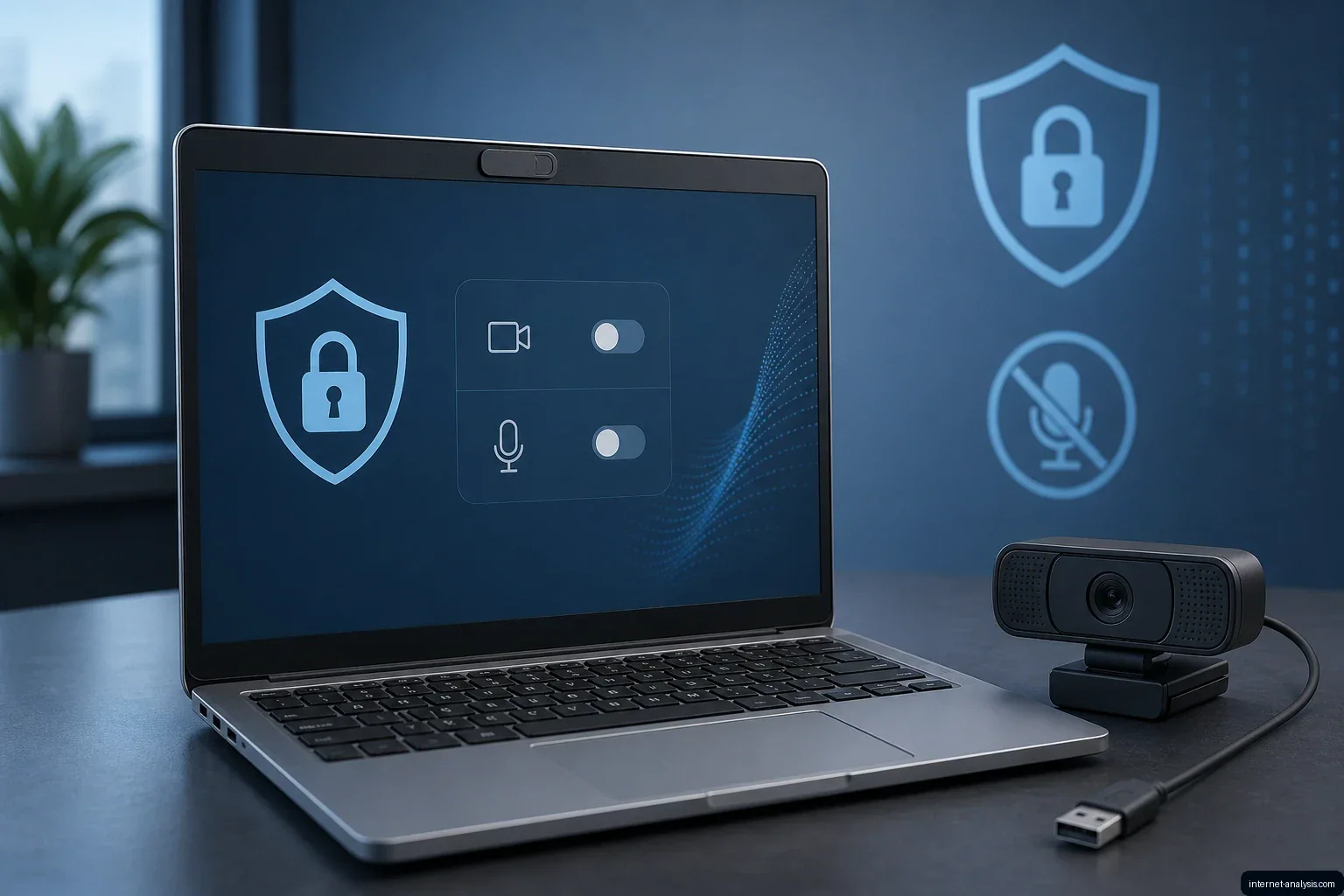
Webcams make video calls with friends, relatives and colleagues possible, but an internet-connected camera can also create a privacy risk if malicious software or an unauthorized user gains control of the computer. Webcam spying is a genuine threat, and it does not always require advanced programming skills. Remote-access tools can allow an attacker to operate a compromised device without the owner’s knowledge.
A camera’s indicator light may provide a warning when the webcam is active, but it should not be treated as a guaranteed safeguard. Depending on the hardware and the method of compromise, an attacker may be able to access a camera without producing an obvious visual alert.
Is Disabling a Webcam Necessary?
The right precaution depends on how often you use the camera and whether it is built into the computer. If you never use your webcam, disabling or disconnecting it can reduce unnecessary exposure. If you use it regularly, a physical cover offers a simple way to block the lens between calls.
No single measure protects the entire computer. Disabling or covering a camera addresses video surveillance, but it does not remove malicious software or prevent access to files, accounts and other connected devices.
Disable the Camera in Windows
Windows users can turn off a webcam through Device Manager. The exact route varies by Windows version, but the general process is:
Open Control Panel and select Device Manager, or search for Device Manager directly.
Locate the webcam under the camera or imaging-device section.
Right-click the camera and choose Disable device.
For a more disruptive option, select Uninstall device. This removes the device from its current Windows configuration, although it may need to be detected or installed again before it can be used.
Software-based controls are convenient, but they are not absolute. An attacker who already has sufficient control of the computer may be able to enable the camera again or reinstall its device support. Disabling the webcam can deter less capable intruders, but it should not be mistaken for a complete defense.
Unplug an External Webcam
An external USB webcam offers the most straightforward option: disconnect it whenever it is not in use. With no physical connection to the computer, software cannot activate that camera. Plug it back in only when needed.
Cover a Built-In Webcam
A physical barrier is simple and effective against unwanted video capture. Software cannot see through an opaque cover placed over the lens, and the cover can be removed when it is time for a video call.
A removable webcam shutter is convenient, but a small piece of tape can also work. Avoid tape with aggressive adhesive because it may leave residue or damage the surface. A low-tack adhesive strip from a sticky note or a small piece of electrical tape may be easier to remove.
Before closing a laptop, make sure the cover is thin enough that it does not interfere with the lid. Also verify that it blocks only the camera rather than nearby sensors or indicator lights.
Do Not Forget the Microphone
Blocking the lens prevents video surveillance, but it does not stop audio capture. Covering a microphone opening may reduce sound quality, but it does not guarantee that recording is impossible. If audio privacy is a concern, disable the microphone through system settings or disconnect an external microphone when it is not needed.
Choosing the Practical Option
Never use the camera: Disable it in Device Manager, uninstall it or disconnect it if it is external.
Use an external webcam occasionally: Unplug it between sessions.
Use a built-in webcam regularly: Place a removable physical cover over the lens when it is idle.
Need protection from audio capture: Manage the microphone separately rather than relying on a camera cover.
For most people, covering a built-in camera or unplugging an external one provides a direct, low-effort privacy measure. Disabling the device in Windows adds another barrier, but physical disconnection or obstruction remains harder for software to reverse.

Krzysztof
Broadband Infrastructure Editor at Internet AnalysisKrzysztof covers broadband technologies, provider availability, and infrastructure change. He focuses on making technical coverage data understandable without overstating what provider-reported availability proves.
View author profile →How this article was prepared
Cross-checks provider, technology, geography, and reporting-vintage fields; separates advertised availability from measured performance; and flags incomplete coverage denominators.
Read our methodology →Reviewed by the Internet Analysis Editorial Team
Reviewed by the Internet Analysis Editorial Team · Updated August 19, 2026
Meet the editorial team →Article context, review and related questions
Webcam spying is a real privacy risk. Learn when disabling a camera makes sense and how to use Windows settings, physical covers or disconnection to prevent unwanted video access.
| Measure | Value | Context |
|---|---|---|
| Article type | Cybersecurity | Editorial classification |
| Reading time | 3 minutes | Estimated at approximately 220 words per minute |
| Editorial review | Internet Analysis Editorial Team | Updated August 19, 2026 |
| Review date | August 19, 2026 | Latest stored article update |
Methodology
Cross-checks provider, technology, geography, and reporting-vintage fields; separates advertised availability from measured performance; and flags incomplete coverage denominators.
Full methodology →Data freshness
- Page updated
- Data period
- August 19, 2026
- Responsible editor
- KrzysztofBroadband Infrastructure Editor
Primary sources
- Internet Analysis editorial methodologyReview and limitation rules
Limitations
- The article is informational and may simplify technical details for readability.
- Products, standards, prices and service availability can change after the review date.
- The latest review date does not guarantee that every external product or service remains unchanged.
Related questions
What is the main point of “How to Disable Your Webcam—and Is It Necessary?”?
Webcam spying is a real privacy risk. Learn when disabling a camera makes sense and how to use Windows settings, physical covers or disconnection to prevent unwanted video access.
How was this article prepared?
Cross-checks provider, technology, geography, and reporting-vintage fields; separates advertised availability from measured performance; and flags incomplete coverage denominators.
When was this information last reviewed?
The latest stored review or update date is August 19, 2026.