What to Remember When Configuring a Home Router
A practical guide to strengthening a home router, including administrator security, WPA settings, updates, firewalls, DNS, NAT, port forwarding, UPnP and network isolation.
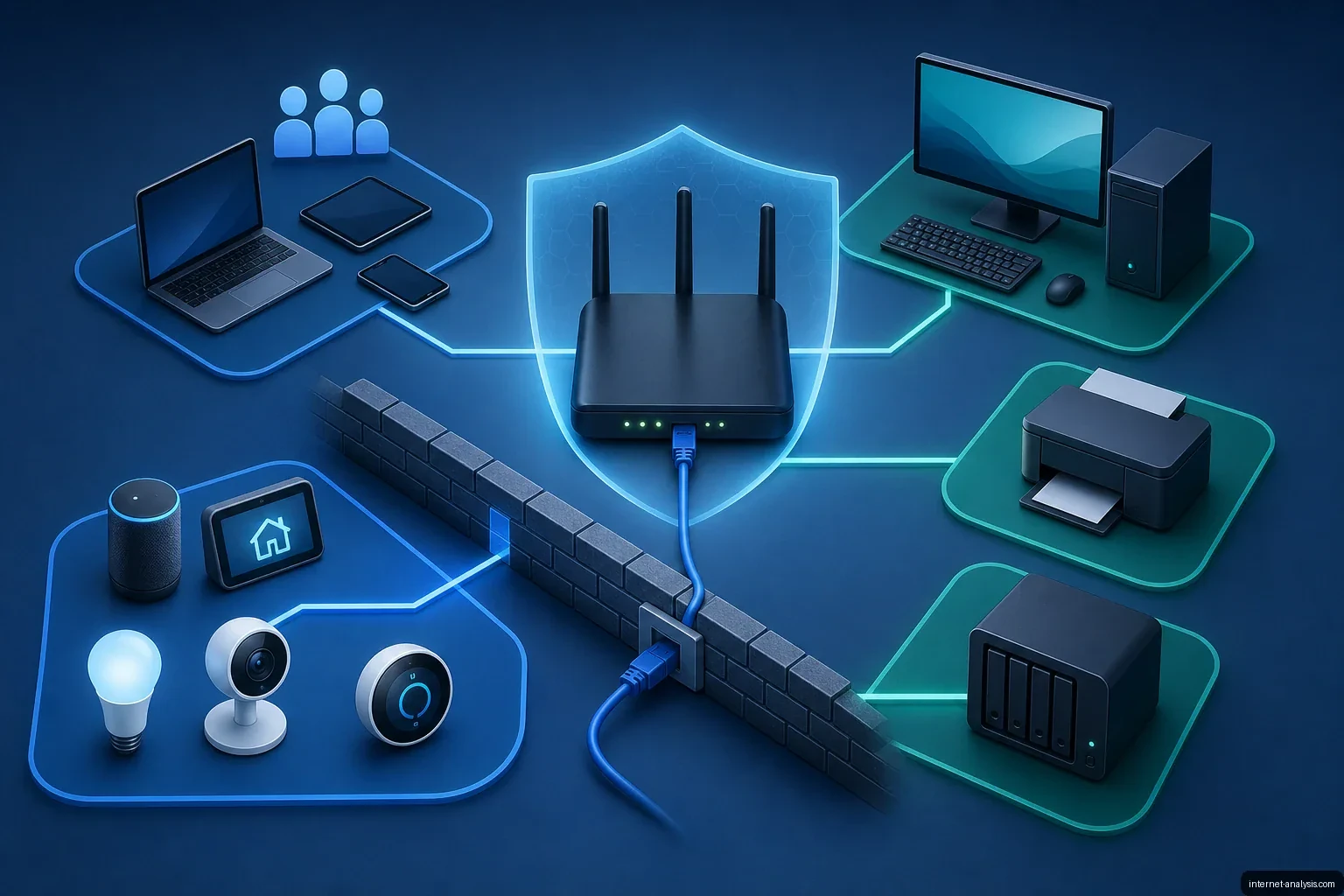
Modern home routers combine several networking functions behind a single administration panel. Along with routing traffic, they commonly provide Ethernet switching, Wi-Fi access, firewall protection, address assignment and sometimes the modem connection itself. Understanding these components can help you improve security without accidentally disrupting your network.
Router features and terminology vary by manufacturer, so check the documentation for your specific model before making changes. Adjust one setting at a time and confirm that the network still works as expected.
Consider using your own router
Internet service providers commonly supply a modem or gateway that supports Wi-Fi and wired Ethernet connections. Although convenient, provider-managed equipment can have several limitations:
- Limited administrative control: The provider may manage or restrict some functions.
- Uncertain update support: Security patches may arrive slowly or stop when the device reaches the end of its supported life.
- Basic features: The gateway may lack useful security and network-management controls.
- Convenience-focused defaults: Services may be enabled simply to make initial setup easier.
A separate router gives you more control over the home network. If you take this approach, disable unneeded services on the provider’s gateway while retaining anything required for internet, television or telephone service. Placing your router behind the provider’s device can add another boundary between local equipment and the internet, although it may also create a double-NAT configuration.
Start setup with a wired connection
A new or reset router may begin broadcasting Wi-Fi immediately, potentially using a default password that is printed on the device or otherwise predictable. When practical, perform the initial setup through an Ethernet cable. On models with removable antennas, disconnecting the antennas before startup can further limit wireless exposure during configuration.
A wired connection is also more reliable while changing wireless settings. If the router restarts its Wi-Fi interfaces, the administration session is less likely to be interrupted.
Secure administrative access first
Routers usually provide a web-based administration panel at a private address such as 192.168.0.1 or 192.168.1.1. Default administrator credentials may be published in the manual, printed on the label or widely known. Historically, combinations such as admin and admin were common.
Change the administrator username if the router permits it, and always replace the default password. Use a strong, unique password that is not based on a dictionary word or reused for another account. A password manager is an appropriate place to store it.
Disable external administration
Some routers allow their administration panel to be reached from the internet. If enabled, the login page becomes publicly accessible and may be targeted by attackers. Disable remote administration unless you have a specific reason to use it.
If remote management is necessary, enable it only when needed or restrict access to approved IP addresses where the router supports that option. Do not permit access to the administration panel from guest or untrusted-device networks.
Choose an appropriate Wi-Fi name and password
A default network name, or SSID, can reveal the router’s manufacturer, model or serial number. That information may help an attacker identify device-specific weaknesses or, in some cases, derive a provider-generated default password. Replace the default SSID with a name that does not identify the hardware or household.
The Wi-Fi password should be unique and difficult to guess. Because it must be entered manually on phones, computers and other equipment, several unrelated words separated by numbers or special characters can be more practical than an arbitrary character sequence while still providing substantial length.
Do not rely on hiding the SSID
Disabling SSID broadcasting does not make a wireless network undetectable. Wireless scanning software can still identify it, while printers and other devices may have trouble connecting. Hiding the network name therefore adds inconvenience without providing meaningful protection.
Use the strongest compatible WPA mode
Wi-Fi Protected Access, or WPA, replaced the older WEP standard. WPA has three major versions. Select WPA3 whenever your devices support it because it addresses weaknesses found in earlier versions. If older equipment cannot connect with WPA3, use WPA2 or a WPA2/WPA3 mixed mode as necessary.
Disable WPS
Wi-Fi Protected Setup allows devices to join a wireless network without entering its normal password. Some implementations use buttons on the router and client device, while others rely on a PIN entered through the administration panel.
WPS was designed for convenience, but implementation weaknesses have allowed attackers to recover PINs and gain network access. A strong Wi-Fi password is the safer option, so disable WPS when possible.
Keep the router updated
Router firmware updates can correct security vulnerabilities and software defects. Enable automatic updates if the manufacturer offers them. Many devices can install patches at a scheduled time, such as overnight, when an interruption is less disruptive.
If automatic installation is unavailable, check periodically for firmware updates. A router that no longer receives security support should be considered for replacement.
Understand the firewall and NAT
A router firewall typically blocks unsolicited packets arriving from the internet unless they belong to a connection initiated from inside the home network. When a computer requests a website, for example, the router allows the corresponding response because it has already observed the outgoing connection.
Some routers offer simple firewall levels such as low, medium and high. Others support rules based on IP addresses, destinations or services. Learn what each mode changes before selecting a more restrictive option, because an unsuitable rule can interfere with legitimate applications.
How NAT affects the network
Network Address Translation changes IP addresses and ports as packets move between networks. In a typical home configuration, NAT allows multiple local devices to share the single external IP address assigned by the internet provider. This use of NAT is often called IP masquerading and is normally enabled by default.
If NAT runs on both the provider’s gateway and your own router, the result is double NAT. Ordinary web access may continue to work, but services involving inbound connections or Dynamic DNS may require additional configuration.
Treat port forwarding with care
Port forwarding directs traffic arriving at a selected router port to a designated IP address and port on the local network. It can make an internal service, game console or server reachable from outside the home.
That access also exposes the destination device to internet traffic and potential attacks. Create only the rules you need, verify the destination address and protocol, and remove rules that are no longer required. Review the router’s complete forwarding list periodically. An external port-scanning service can help identify ports that are visible from the internet.
Disable UPnP unless it is required
Universal Plug and Play allows compatible devices and applications to request network changes automatically. A game console, for example, may ask the router to permit traffic through a particular port without requiring manual configuration.
The drawback is that any device with access to the network may be able to influence the router’s configuration without separate approval. Automatically created mappings may also be difficult to notice in the administration panel. Unless an application clearly requires UPnP, disable it and create necessary port-forwarding rules manually.
Choose a security-focused DNS service
The Domain Name System translates human-readable domain names into numerical IP addresses. Devices normally obtain a DNS server address from the router, which may in turn use a service selected by the internet provider.
Changing the router’s DNS configuration can add a layer of protection if the chosen service refuses to resolve domains associated with known malicious sites. Quad9 provides this type of filtering at 9.9.9.9. DNS filtering is useful as an additional safeguard, but it does not replace secure devices, current software or careful browsing.
Use DHCP reservations for devices that need stable addresses
Dynamic Host Configuration Protocol supplies connected devices with information such as an IP address, subnet mask, gateway address and DNS server. Without DHCP, these values generally must be entered manually.
A device may receive a different address each time it reconnects. That can be inconvenient for network printers, Network Attached Storage systems and Internet of Things equipment. A DHCP reservation associates a device with a particular local IP address so the router assigns it consistently.
Reservations normally depend on the device’s MAC address. They may stop matching if the device uses MAC address randomization, such as the Private Wi-Fi Address feature in iOS.
Why MAC filtering offers little protection
Every wired or wireless network adapter uses a Media Access Control address. Router-based MAC filtering can allow or reject devices according to that value, but modern adapters and operating systems can change or imitate MAC addresses. The control is therefore easy to bypass and creates administrative work whenever a new device joins the network. It should not be treated as a substitute for WPA security and a strong password.
Separate guests and untrusted devices
Many routers can create additional wireless networks isolated from the primary network. Isolation prevents devices on one network from directly seeing equipment on another.
Separate networks are useful for:
- Guests’ phones, tablets and computers.
- Work or school devices.
- Smart bulbs and other Internet of Things products.
- Equipment that no longer receives manufacturer updates.
- Any device you do not fully trust.
Depending on the router, an isolated network can also have bandwidth limits, internet-access schedules or restrictions on reaching the administration panel. This reduces the ability of a compromised or overly curious device to scan or communicate with systems on the primary network.
Block internet access where it is unnecessary
Some local devices need to communicate with computers inside the home but do not require an internet connection. An old network printer is one example. Routers may allow outbound access to be blocked through device controls, firewall rules or parental-control features. This can be applied temporarily or permanently.
Use QoS to manage performance
Quality of Service is a collection of rules for prioritizing certain traffic. A router may give preference to streaming, video calls or all traffic from a selected device. Proper prioritization can improve responsiveness when several household members share a limited connection.
QoS is primarily a performance feature rather than a security control. Its effect depends on the router’s capabilities and the rules selected.
A practical configuration checklist
- Connect through Ethernet for the initial setup when possible.
- Change the default administrator password and username.
- Disable administration access from the internet.
- Install current firmware and enable automatic updates.
- Replace the default SSID and wireless password.
- Use WPA3, or WPA2/WPA3 mixed mode when compatibility requires it.
- Disable WPS and unnecessary UPnP support.
- Confirm that the firewall is enabled.
- Review all port-forwarding rules.
- Create isolated networks for guests and untrusted equipment.
- Block internet access for devices that do not need it.
- Use DHCP reservations for printers, storage systems and other devices that need stable addresses.
- Consider a DNS service that filters known malicious domains.
Make changes methodically
A home router is not a single-purpose appliance. It combines a router, Ethernet switch, wireless access point and, in some products, a modem. Changing one feature can therefore affect several parts of the network.
Before adjusting an unfamiliar setting, determine what it does and what devices depend on it. Change one option at a time, test the result and keep a record of the previous value. If you have an unused router, it can provide a safe environment for practicing before you modify the equipment supporting your main home network.

Anna
Digital Safety & Consumer Research Editor at Internet AnalysisAnna edits practical guidance about safer internet use, privacy, online services, and consumer decisions. She prioritizes clear recommendations, scope, and transparent sourcing.
View author profile →How this article was prepared
Reviews claims against named primary or authoritative sources, removes unsupported certainty, distinguishes general education from professional advice, and records the article update date.
Read our methodology →Reviewed by the Internet Analysis Editorial Team
Reviewed by the Internet Analysis Editorial Team · Updated August 17, 2026
Meet the editorial team →Article context, review and related questions
A practical guide to strengthening a home router, including administrator security, WPA settings, updates, firewalls, DNS, NAT, port forwarding, UPnP and network isolation.
| Measure | Value | Context |
|---|---|---|
| Article type | Security | Editorial classification |
| Reading time | 9 minutes | Estimated at approximately 220 words per minute |
| Editorial review | Internet Analysis Editorial Team | Updated August 17, 2026 |
| Review date | August 17, 2026 | Latest stored article update |
Methodology
Reviews claims against named primary or authoritative sources, removes unsupported certainty, distinguishes general education from professional advice, and records the article update date.
Full methodology →Data freshness
- Page updated
- Data period
- August 17, 2026
- Responsible editor
- AnnaDigital Safety & Consumer Research Editor
Primary sources
- Internet Analysis editorial methodologyReview and limitation rules
Limitations
- The article is informational and may simplify technical details for readability.
- Products, standards, prices and service availability can change after the review date.
- The latest review date does not guarantee that every external product or service remains unchanged.
Related questions
What is the main point of “What to Remember When Configuring a Home Router”?
A practical guide to strengthening a home router, including administrator security, WPA settings, updates, firewalls, DNS, NAT, port forwarding, UPnP and network isolation.
How was this article prepared?
Reviews claims against named primary or authoritative sources, removes unsupported certainty, distinguishes general education from professional advice, and records the article update date.
When was this information last reviewed?
The latest stored review or update date is August 17, 2026.